Install the app
You can add this site to your phone's home screen or your computer so it opens like an app: full screen, with its own icon. It's free and takes a few seconds. There's no app store, no account and no tracking.
What you get
- Its own icon on your home screen, dock or Start menu, opening without the browser's address bar.
- Pages you've already viewed work without a signal, such as on a plane or in a building with no reception. Pages you haven't opened yet need a connection.
- Always current. It's the same site, so every update reaches the app straight away. There's nothing to update by hand.
- Shortcuts: press and hold the icon (or right-click it on a computer) to jump straight to Find your members, Surveyed votes or Compare.
- A Back button in the header, since there's no browser bar. Swiping back works too.
iPhone and iPad
- Open uscongressvsvoters.org in Safari, Chrome or Edge (Chrome and Edge need iOS 16.4 or later).
- Tap the Share button (the square with an arrow pointing up). In Safari it's at the bottom of the screen on iPhone and at the top on iPad; in Chrome it's at the right end of the address bar.
- Scroll down the list of actions (below Add to Bookmarks, Find in Page and Print) and tap Add to Home Screen.
- Tap Add.
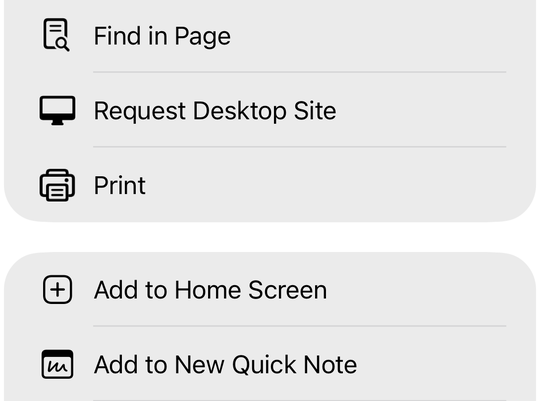
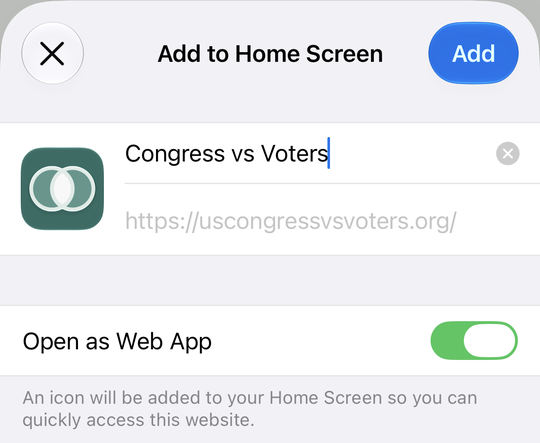
Don't see Add to Home Screen? Scroll to the very bottom of the list, tap Edit Actions…, and tap the green + next to Add to Home Screen. It then stays in your share list.
Android
- Open uscongressvsvoters.org in Chrome.
- Tap the ⋮ menu at the top right.
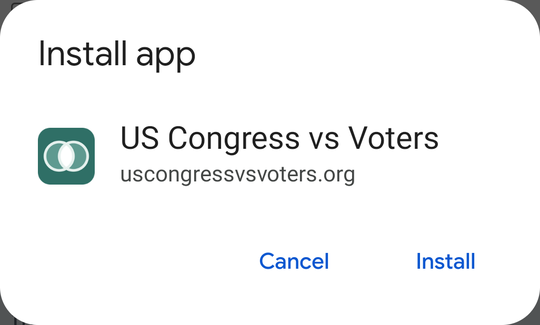
- Tap Install and create shortcut (in older versions of Chrome, Add to Home screen or Install app). If asked, choose Install rather than Create shortcut, then tap Install.
Or tap Get the app at the top of any page, which opens the same install prompt.
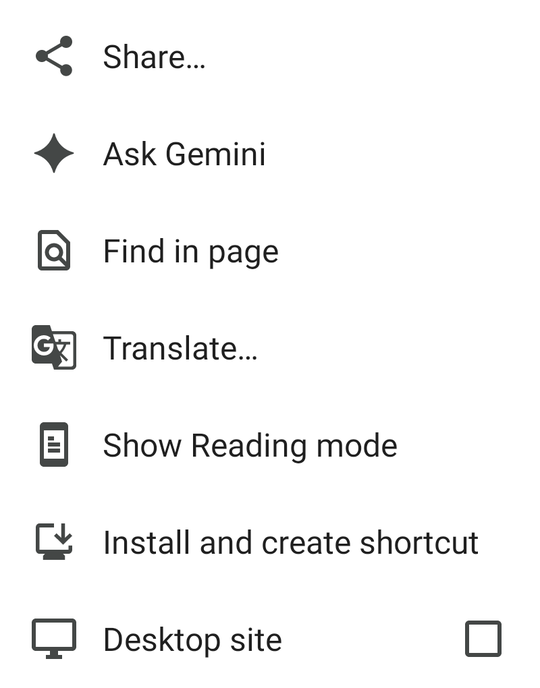
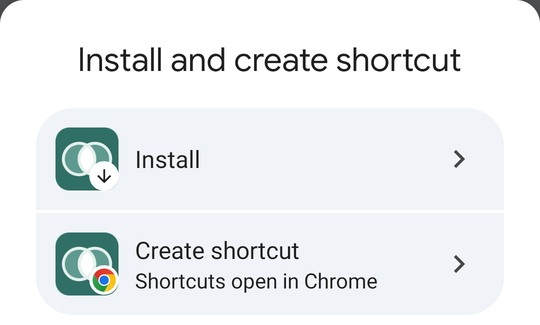
In Samsung Internet, tap the menu (☰), then Add page to, then Home screen. In Firefox, tap the menu (⋮), then Add to Home screen.
Computer
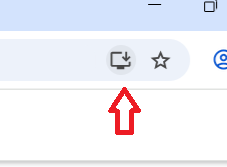
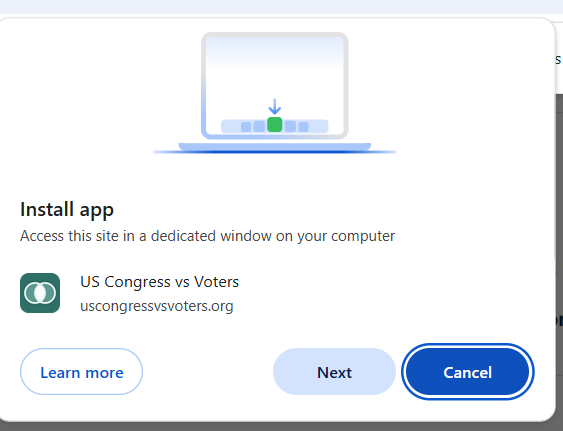
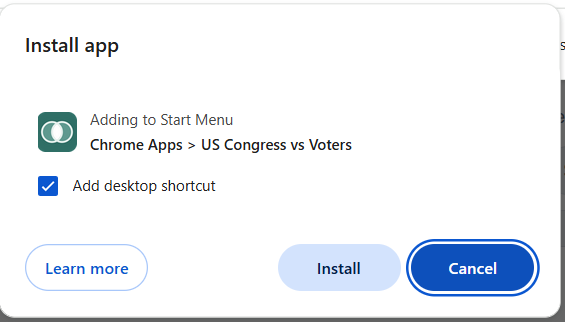
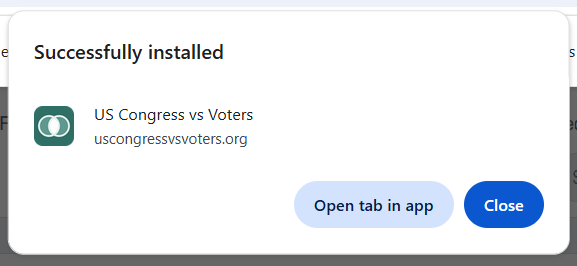
- Chrome: click the install icon at the right end of the address bar (a small screen with a down arrow), or the Get the app button at the top of any page. Click Next, then Install. (Or open the ⋮ menu, then Cast, save and share, then Install page as app.) On Windows it's added to the Start menu, and to the desktop if you leave Add desktop shortcut ticked.
- Microsoft Edge: open the … menu, then Apps, then Install this site as an app.
- Safari on a Mac (macOS Sonoma or later): open the File menu, then Add to Dock.
- Firefox on a computer doesn't install sites as apps. A bookmark works just as well.
Menu names change from time to time. If yours look different, look for "Install" or "Add to Home Screen" in the browser's menu.
Privacy
The app is this website, so it collects exactly what the website does: nothing. There are no accounts, no cookies and no tracking, and it doesn't contact any other company. To work without a signal, your browser keeps copies of pages you've viewed on your device only; they're replaced with fresh ones whenever you're online. See Privacy.
Removing it
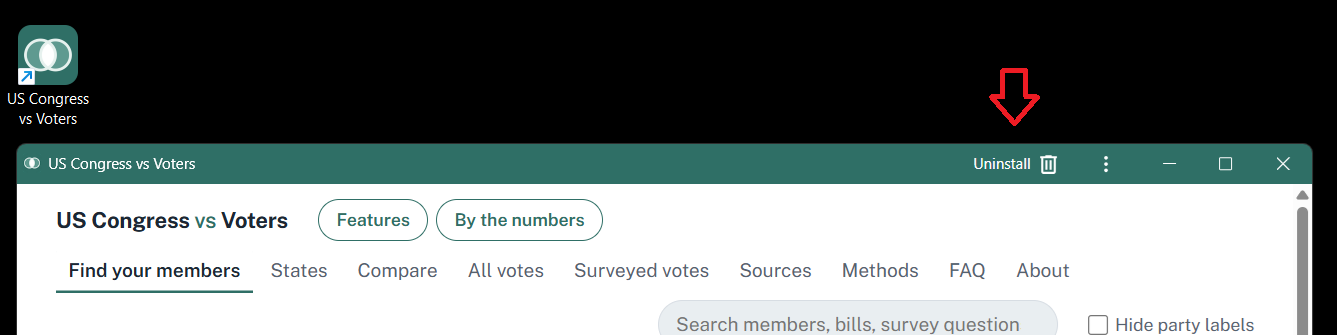
Remove it like any app: press and hold the icon and choose Remove App or Uninstall, or on a computer, click Uninstall in the app window's title bar (or right-click its icon and choose Uninstall). Clearing this site's data in your browser removes the saved copies too.